
Software
The CropWatch dashboard, alert rules and reports.
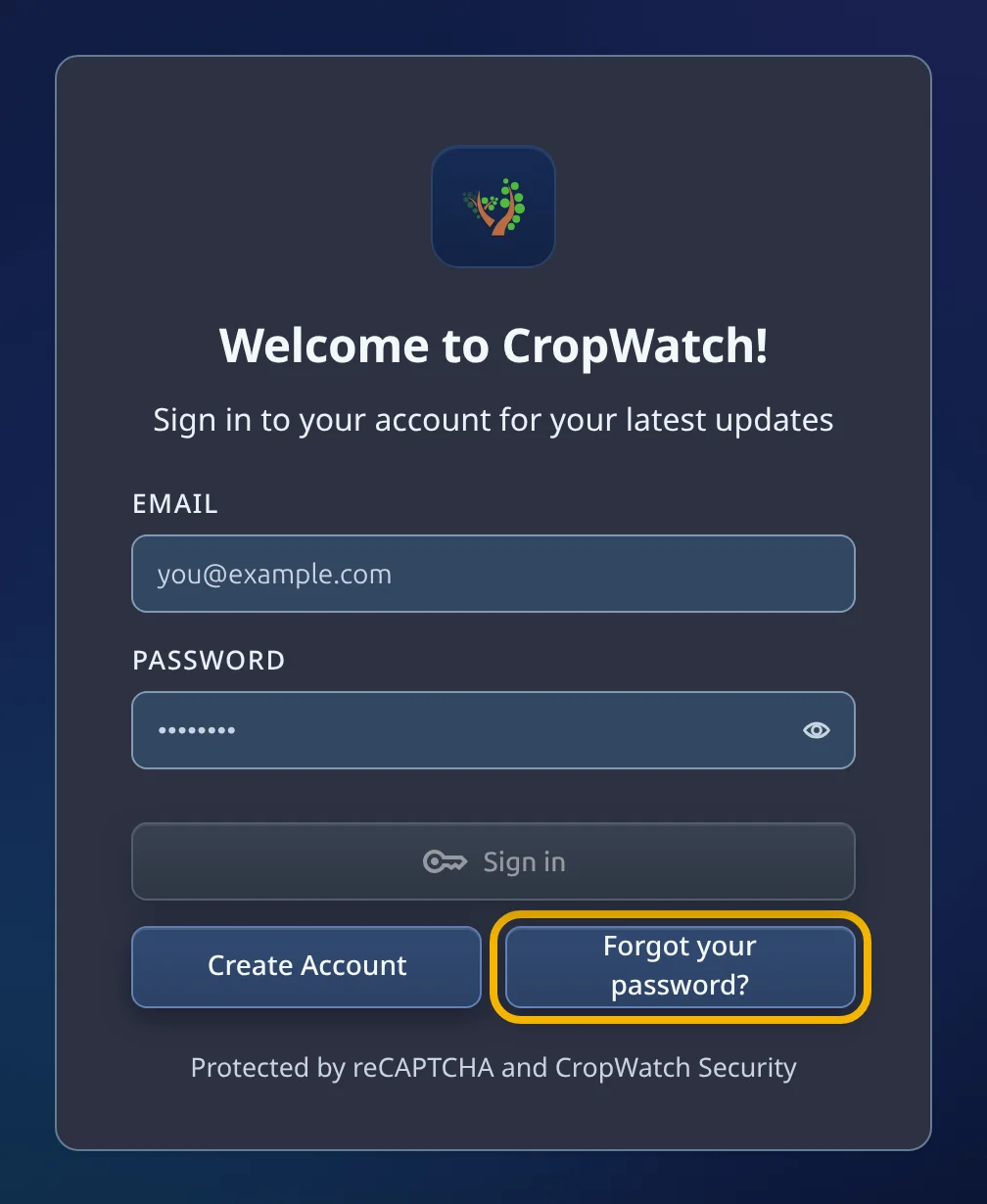
Resetting your password
Forgot your password? Ask for a reset link from the sign-in page and choose a new one in a few minutes.
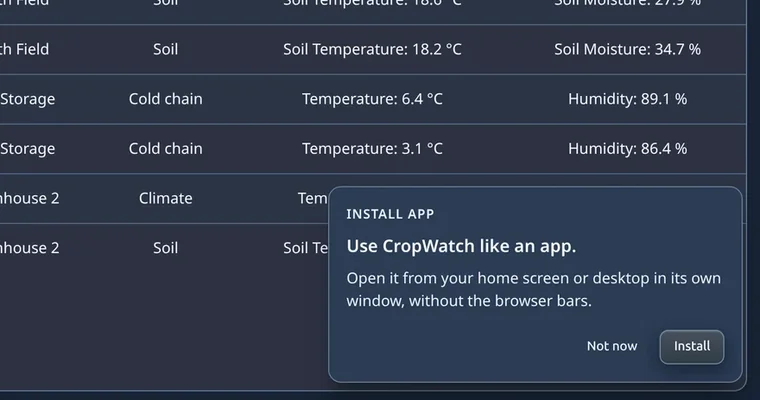
Installing CropWatch as an app
Install CropWatch on Android, iPhone, iPad or a computer, see what the installed app does differently, and learn how long you stay signed in.
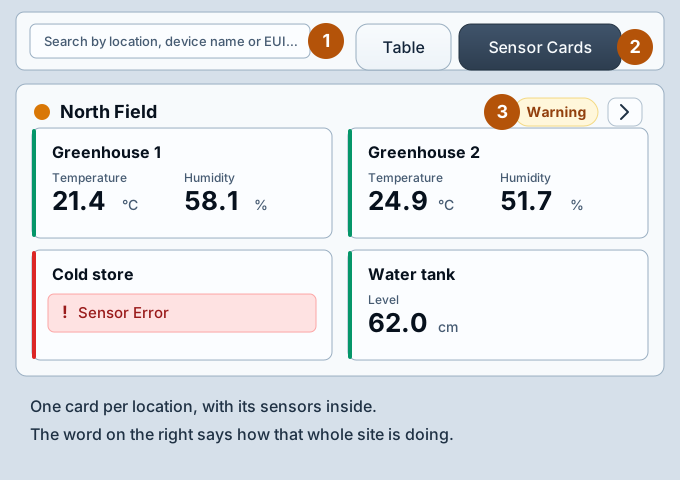
Reading the dashboard
What every part of the dashboard means, and what to do when a sensor goes quiet.
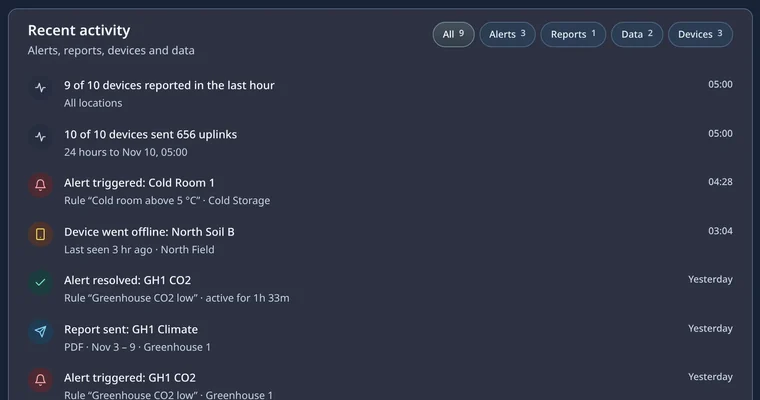
The Overview page
What every card and number on the Overview page means, how each is worked out, and where its links go.
The location page
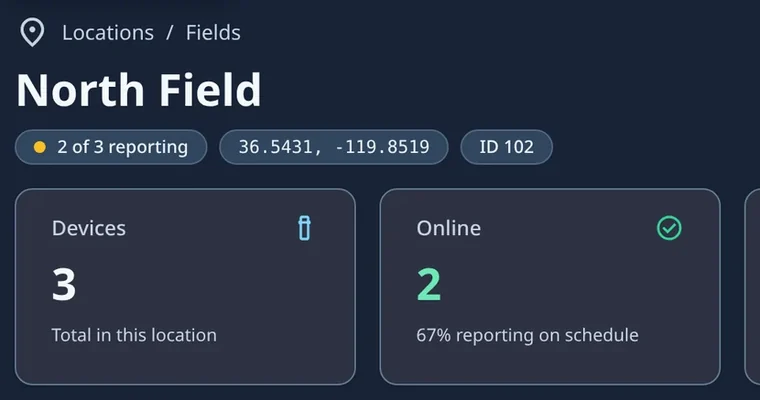
What is on a location's page: the status chips and summary cards, the map, Device health, the list of sensors with every column including gateway signal, and what each permission level sees.
Location settings
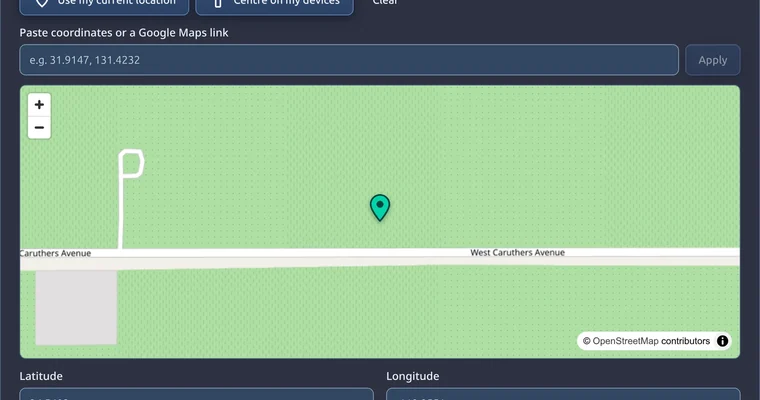
Renaming a location and setting its group, placing it on the map with latitude, longitude and zoom, and deleting an empty location as its owner.
Adding a sensor
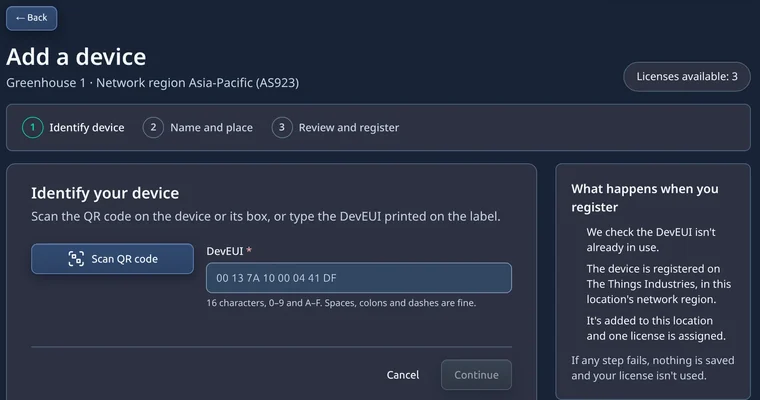
Add a new sensor to a location: scan its QR code or type its DevEUI, name and place it, and register it on the network with one licence.
Sensor settings
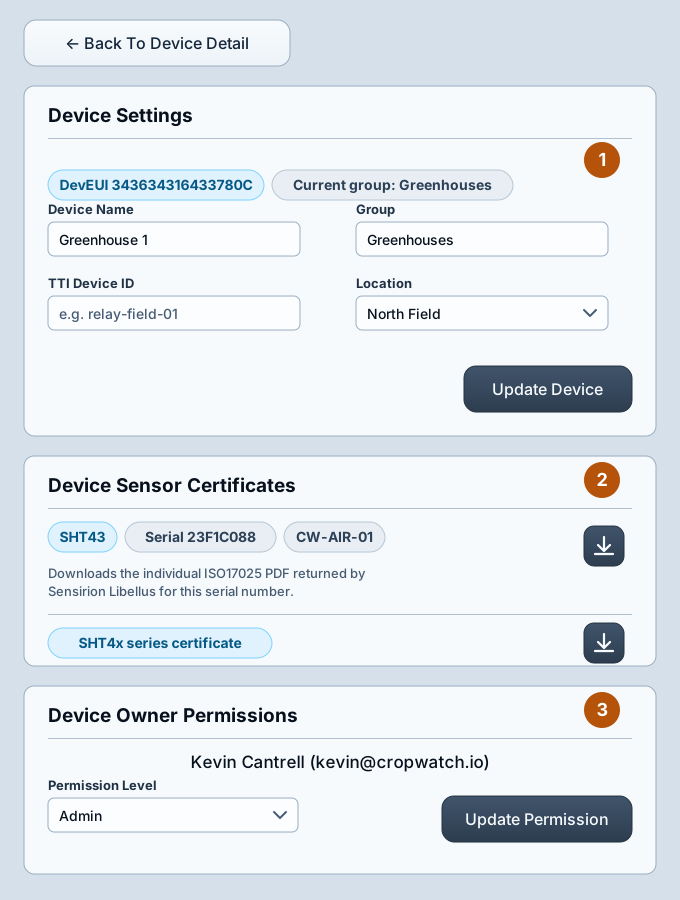
Renaming a sensor, grouping it, moving it between sites, its calibration certificates, and who is allowed to see it.
Sharing access and permission levels
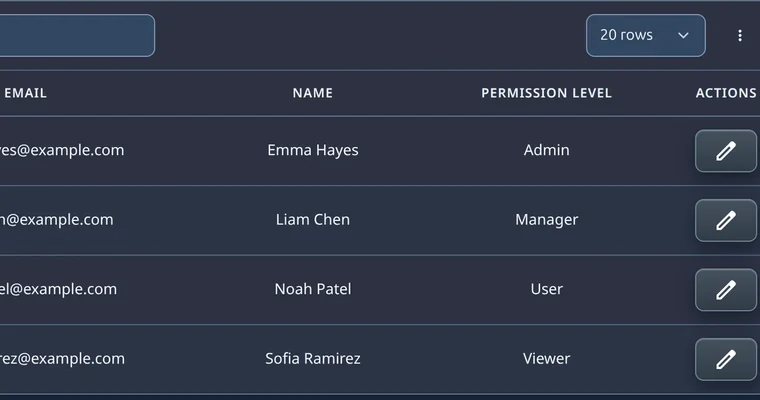
Why access starts at a location, what Owner, Admin, Manager, User, Viewer and Disabled each allow, and how to add, change and remove people.
Crop targets and growing advice
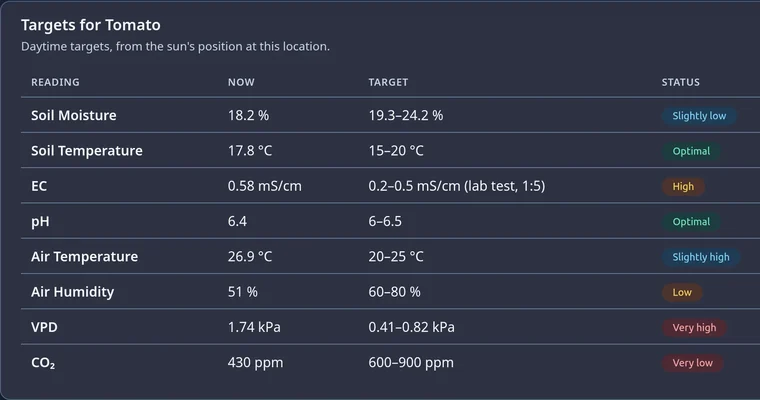
Choose a soil sensor's crop to judge its readings against that crop's day, night and light targets, and read the daily Growing advice card.
Switching relays
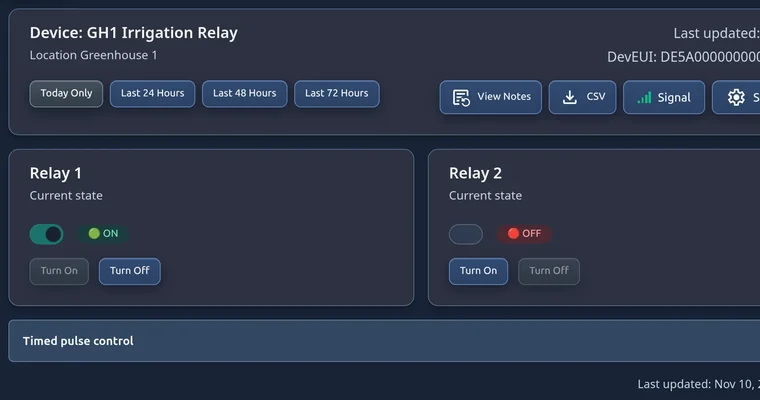
How relays show on the dashboard, how to switch or pulse one from its page and confirm it worked, the Relay History, who may switch, and alert rules that switch relays.
Creating an alert rule
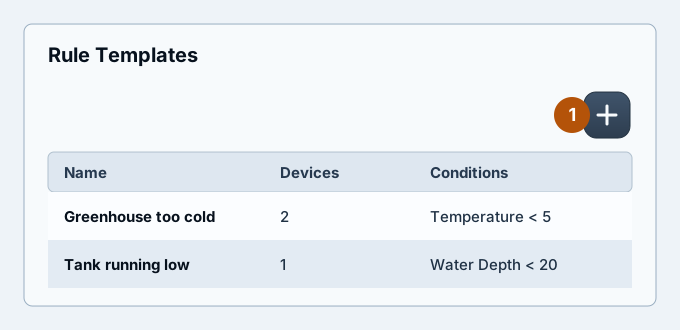
Step by step, with pictures: watch a reading, set the limit, and choose who is told.
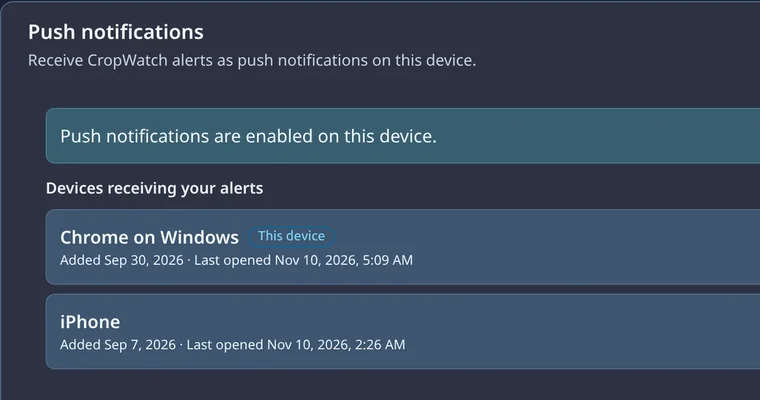
Push notifications on phones and computers
Turn on CropWatch push alerts for each phone, tablet and computer, manage the list of devices that receive them, and fix alerts that do not arrive.
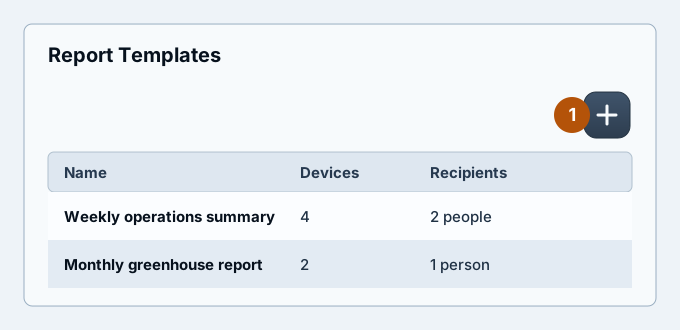
Creating a report
Step by step, with pictures: choose the sensors, set the schedule, and say who receives it.
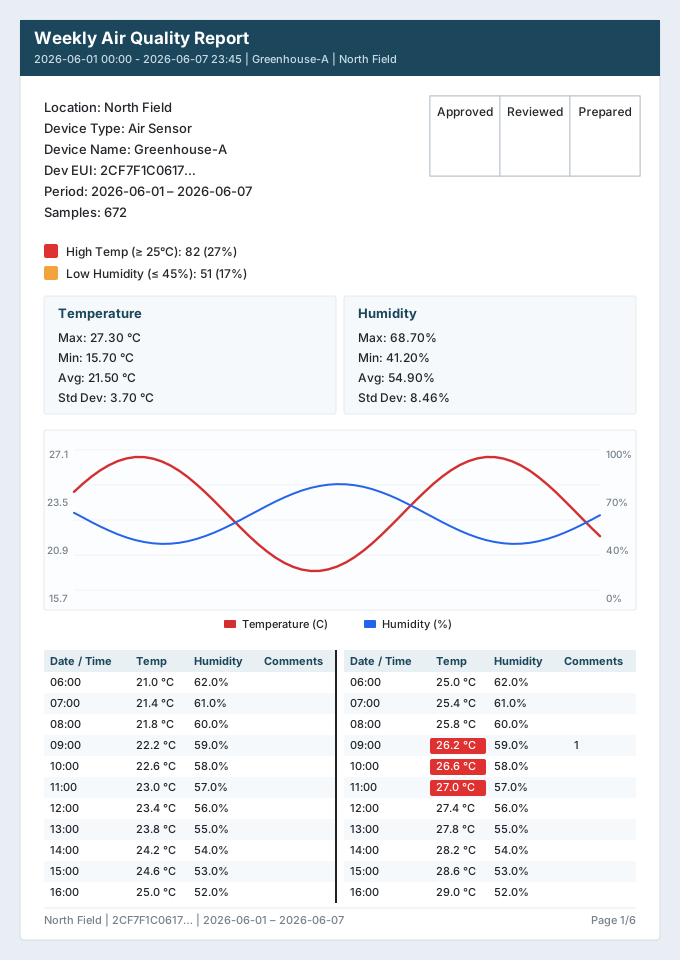
Reading a report
What is inside the PDF: the colours, the two panels, the chart, the readings and the notes.